Github Copilot CLI Notification Settings in Windows
Table of Contents
Overview
In this article, I’ll show you how to set up Windows Toast notifications for Github Copilot CLI running on Windows using a custom notification script and the BurntToast PowerShell module.
- Install BurntToast in Windows PowerShell
- Create a notification script in PowerShell that sends Windows Toast notifications
- Configure Github Copilot CLI hooks to trigger the notification script on specific events (e.g., when a session ends or when a prompt is submitted)
- Test the setup by running a Github Copilot CLI command and confirming you receive a Windows Toast notification
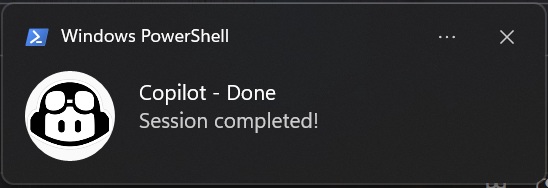
Install BurntToast in PowerShell
Install the BurntToast module in PowerShell to send Windows Toast notifications.
Install-Module -Name BurntToast -Force -Scope CurrentUser
Confirm your execution policy allows running scripts:
Get-ExecutionPolicy -Scope CurrentUser
If the execution policy is too restrictive (e.g., Restricted), set it to RemoteSigned:
Set-ExecutionPolicy -ExecutionPolicy RemoteSigned -Scope CurrentUser
You can now send test notifications from PowerShell to confirm BurntToast is working:
Import-Module BurntToast
New-BurntToastNotification -Text "Test Notification", "BurntToast is working!"
(Optional) Put Custom Logo for Notifications
You can use a custom logo for the notifications by placing an image file (e.g., logo.png) in a Windows directory. In this article, we put the logo in D:\your\logo\path\logo.png. Update the $icon variable in the script below with the path to your logo.
You can test the notification with the custom logo:
Import-Module BurntToast
New-BurntToastNotification -Text "Test Notification", "BurntToast is working!" -AppLogo "D:\your\logo\path\logo.png"
Create Notification Script in PowerShell
Create a script file, for example notepad $env:USERPROFILE\.bin\copilot-notify.ps1, and add the following content:
# copilot-notify.ps1
# Sends a Windows Toast notification when Copilot CLI hooks are triggered.
# Copilot CLI passes hook data as JSON via stdin.
# The hook event name is passed via COPILOT_HOOK_EVENT env var.

# Read JSON payload from stdin
$stdin = $input | Out-String

# Debug log — uncomment to troubleshoot
#$logPath = "$env:TEMP\copilot-hook-debug.log"
#"=== $(Get-Date) ===" | Add-Content $logPath
#"COPILOT_HOOK_EVENT: $env:COPILOT_HOOK_EVENT" | Add-Content $logPath
#"STDIN: $stdin" | Add-Content $logPath

# Set notification title and message based on hook event
switch ($env:COPILOT_HOOK_EVENT) {
    "sessionEnd" {
        $title = "Copilot - Done"
        $message = "Session completed!"
    }
    "preToolUse" {
        $title = "Copilot - Action Needed"
        $message = "Waiting for your input!"
    }
    "errorOccurred" {
        $title = "Copilot - Error"
        $message = "An error occurred!"
    }
    default {
        $title = "Copilot"
        $message = "Notification"
    }
}

$icon = "D:\your\logo\path\logo.png"

# Send Windows Toast notification via BurntToast
Import-Module BurntToast
New-BurntToastNotification -Text $title, $message -AppLogo $icon
Create the .bin directory if it doesn’t exist and confirm the script is in place:
New-Item -ItemType Directory -Path "$env:USERPROFILE\.bin" -Force
Configure Copilot CLI Hooks
Create hooks.json
Create a hooks configuration file. We’ll store it centrally at %USERPROFILE%\.copilot\hooks.json and symlink it into each project:
{
  "version": 1,
  "hooks": {
    "sessionEnd": [
      {
        "type": "command",
        "command": "powershell.exe -NonInteractive -File C:\\Users\\your-username\\.bin\\copilot-notify.ps1",
        "timeoutSec": 10,
        "env": { "COPILOT_HOOK_EVENT": "sessionEnd" }
      }
    ],
    "preToolUse": [
      {
        "type": "command",
        "command": "powershell.exe -NonInteractive -File C:\\Users\\your-username\\.bin\\copilot-notify.ps1",
        "timeoutSec": 10,
        "env": { "COPILOT_HOOK_EVENT": "preToolUse" }
      }
    ],
    "errorOccurred": [
      {
        "type": "command",
        "command": "powershell.exe -NonInteractive -File C:\\Users\\your-username\\.bin\\copilot-notify.ps1",
        "timeoutSec": 10,
        "env": { "COPILOT_HOOK_EVENT": "errorOccurred" }
      }
    ]
  }
}
Replace C:\Users\your-username\.bin\copilot-notify.ps1 with the actual path to your notification script.
The available hook events are:
| Event | Description |
|---|---|
sessionStart |
Session started |
sessionEnd |
Session completed |
userPromptSubmitted |
User submitted a prompt |
preToolUse |
Before a tool is used |
postToolUse |
After a tool is used |
errorOccurred |
An error occurred |
For more details on hooks, see the Using hooks with GitHub Copilot CLI documentation.
Symlink hooks.json into Your Project
Copilot CLI loads hooks from .github\hooks\hooks.json in the current working directory. Create a symlink in each project where you want notifications (run PowerShell as Administrator):
New-Item -ItemType Directory -Path "your-project\.github\hooks" -Force

# Admin privileges are required to create symlinks in Windows. Run PowerShell as Administrator and execute:
New-Item -ItemType SymbolicLink -Path "your-project\.github\hooks\hooks.json" -Target "$env:USERPROFILE\.copilot\hooks.json"
This way, you maintain a single hooks.json and share it across multiple projects.
Test with Copilot CLI
Go to your project directory and run the Copilot CLI:
cd your-project
copilot
Then send a small request to trigger the hooks, for example:
> hi
If everything is set up correctly, you should see Windows Toast notifications when:
- The session ends (
sessionEnd) - An error occurs (
errorOccurred)
Debugging
If you don’t see notifications, enable the debug logging in copilot-notify.ps1 by uncommenting the debug block:
# Debug log — uncomment to troubleshoot
$logPath = "$env:TEMP\copilot-hook-debug.log"
"=== $(Get-Date) ===" | Add-Content $logPath
"COPILOT_HOOK_EVENT: $env:COPILOT_HOOK_EVENT" | Add-Content $logPath
"STDIN: $stdin" | Add-Content $logPath
Then check the log at %TEMP%\copilot-hook-debug.log:
Get-Content "$env:TEMP\copilot-hook-debug.log"
If the log file doesn’t exist after running Copilot CLI, the hooks aren’t being loaded. Verify that:
- The symlink is valid:
Get-Item your-project\.github\hooks\hooks.json - The hooks.json path is
.github\hooks\hooks.json(not the project root) - The notification script path in hooks.json is correct
You can also test the script directly from PowerShell:
$env:COPILOT_HOOK_EVENT = "sessionEnd"
'{"timestamp":1704614400000}' | powershell.exe -NonInteractive -File "$env:USERPROFILE\.bin\copilot-notify.ps1"
After confirming the setup works, comment out the debug logging lines to avoid unnecessary logging.