- Home
- /
- Posts
- /
- Claude Code
Claude Code CLI Notification Settings in WSL
Table of Contents
Overview
In this article, I’ll show you how to set up Windows Toast notifications for Claude Code CLI running in WSL using a custom notification script and the BurntToast PowerShell module.
- Install BurntToast in Windows Powershell
- Create a notification script in WSL that sends notifications via PowerShell
- Configure Claude Code CLI to trigger the notification script on specific hooks (e.g., when a task is completed or when attention is needed)
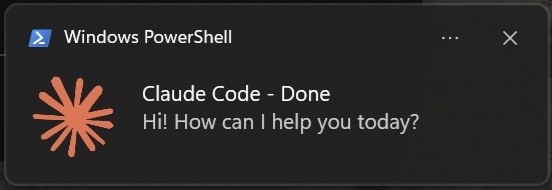
- Test the setup by running a Claude Code CLI command and confirming you receive a Windows Toast notification with the message from Claude Code.
Install BurntToast in Powershell
Install the BurntToast module in Powershell to send Windows Toast notifications from WSL.
Install-Module -Name BurntToast -Force -Scope CurrentUser
Confirm your execution policy allows running scripts:
Get-ExecutionPolicy -Scope CurrentUser
If the execution policy is too restrictive (e.g., Restricted), set it to RemoteSigned:
Set-ExecutionPolicy -ExecutionPolicy RemoteSigned -Scope CurrentUser
You can now send test notifications from Powershell to confirm BurntToast is working:
Import-Module BurntToast
New-BurntToastNotification -Text "Test Notification", "BurntToast is working!"
(Optional) Put Custom Logo for Notifications
You can use a custom logo for the notifications by placing an image file (e.g., logo.png) in a Windows directory. In this article, we put the logo in D:\your\logo\path\logo.png. Update the ICON variable in the script below with the path to your logo.
You can test the notification with the custom logo:
Import-Module BurntToast
New-BurntToastNotification -Text "Test Notification", "BurntToast is working!" -AppLogo "D:\your\logo\path\logo.png"
Create Notification Script in WSL via Powershell
Create a script file for example vim ~/.bin/claude-notify.sh and add the following content:
#!/bin/bash
# claude-notify.sh
# Sends a Windows Toast notification when Claude Code hooks are triggered.
# Claude Code passes hook data as JSON via stdin.

# Ensure common binaries are available (Claude CLI may not inherit shell PATH)
export PATH="/usr/local/sbin:/usr/local/bin:/usr/sbin:/usr/bin:/sbin:/bin:$PATH"

# Read JSON payload from stdin
STDIN=$(cat)

# Debug log — remove once confirmed working
{
  echo "=== $(date) ==="
  echo "STDIN: $STDIN"
} >> /tmp/claude-hook-debug.log 2>&1

# Parse hook event name and last assistant message from JSON.
# Sanitize message: strip newlines, markdown, and quotes that would break PowerShell.
HOOK=$(echo "$STDIN" | python3 -c "
import sys, json
d = json.load(sys.stdin)
print(d.get('hook_event_name', 'Claude Code'))
" 2>/dev/null)

LAST_MSG=$(echo "$STDIN" | python3 -c "
import sys, json, re
d = json.load(sys.stdin)
msg = d.get('last_assistant_message', '')
# Remove markdown code blocks and headers
msg = re.sub(r'\`\`\`.*?\`\`\`', '', msg, flags=re.DOTALL)
msg = re.sub(r'[#*\`|]', '', msg)
# Collapse whitespace and newlines into single spaces
msg = re.sub(r'\s+', ' ', msg).strip()
# Remove single/double quotes to avoid breaking PowerShell string
msg = msg.replace(\"'\", '').replace('\"', '')
# Truncate to 80 chars
print(msg[:80])
" 2>/dev/null)

# Set notification title and message based on hook type
case "$HOOK" in
  "Stop")
    TITLE="Claude Code - Done"
    MESSAGE="${LAST_MSG:-Task completed!}"
    ;;
  "Notification")
    TITLE="Claude Code - Attention"
    MESSAGE="${LAST_MSG:-Needs your attention!}"
    ;;
  *)
    TITLE="Claude Code"
    MESSAGE="${LAST_MSG:-Notification}"
    ;;
esac

# Convert WSL icon path to Windows path for PowerShell
ICON="/mnt/d/your/logo/path/logo.png"
WIN_ICON=$(wslpath -w "$ICON" 2>/dev/null)

# Send Windows Toast notification via BurntToast PowerShell module
/mnt/c/Windows/System32/WindowsPowerShell/v1.0/powershell.exe -Command "
Import-Module BurntToast
New-BurntToastNotification -Text '$TITLE', '$MESSAGE' -AppLogo '$WIN_ICON'
" 2>/dev/null

# Fallback: terminal bell in case PowerShell notification fails
echo -e "\a"
Make the script executable:
sudo chmod +x ~/.bin/claude-notify.sh
Configure Claude Code to Use Notification Script
Edit your Claude Code settings with vim ~/.claude/settings.json:
{
  "hooks": {
    "Notification": [
      {
        "matcher": "",
        "hooks": [
          {
            "type": "command",
            "command": "/home/your-username/.bin/claude-notify.sh"
          }
        ]
      }
    ],
    "Stop": [
      {
        "matcher": "",
        "hooks": [
          {
            "type": "command",
            "command": "/home/your-username/.bin/claude-notify.sh"
          }
        ]
      }
    ]
  }
}
Replace /home/your-username/.bin/claude-notify.sh with the actual path to your notification script.
In the above configuration, the notification script will be triggered for all Notification and Stop hooks (when Claude Code needs attention or finishes a task). You can customize the matcher field to trigger notifications only for specific events if desired.
For more details, see Claude Code Hooks reference.
Test with Claude Code CLI
Go to your project directory and execute a Claude Code CLI:
cd your-project
claude
Then send a small request to trigger the hooks, for example:
❯ Hi

● Hi! How can I help you today?
If everything is set up correctly, you should see a Windows Toast notification with the message from Claude Code.
Debugging
If you don’t see notifications, check the log at /tmp/claude-hook-debug.log.
After confirming the script works, you can remove the debug logging lines from the script ~/.bin/claude-notify.sh to avoid unnecessary logging.
# Debug log — remove once confirmed working
{
  echo "=== $(date) ==="
  echo "STDIN: $STDIN"
} >> /tmp/claude-hook-debug.log 2>&1